Table of Content
- 1 How To Install Swift Streamz On Firestick
- 1.1 1- Go to Firestick home
- 1.2 2- Select firestick Settings
- 1.3 3- Open My Fire TV
- 1.4 4- Choose Developer Options
- 1.5 5- Select Apps from Unknown Sources
- 1.6 6- Enable Apps from Unknown Sources
- 1.7 7- Open Search option
- 1.8 8- Type Downloader
- 1.9 9- Select Downloader
- 1.10 10- Select Download
- 1.11 11- Wait…
- 1.12 12- Open Downloader
- 1.13 13- Select OK
- 1.14 14- Select the URL Box
- 1.15 15- Enter Download Link
- 1.16 16- Wait…
- 1.17 17- Select Install
- 1.18 18- Wait…
- 1.19 19- Select Open
- 1.20 20- Select a Region
- 1.21 21- Select a Channel name
- 1.22 22- Select a Media Player
This guide will drive you through the step by step installation process of Swift Streamz Apk on Firestick. I’ll show you the complete method along with screenshots of every step. I’m using 2nd generation Fire TV Stick but, the same steps also work on 3rd generation FireStick, Fire TV Cube, and Fire TV Stick 4K.
In this hurdle of streaming services, Swift Streamz has gained a special presence on IPTV lovers. Unlike other popular streaming services like Netflix, Prime Video, HBO, Hulu, etc. Swift Streamz does not ask for monthly payment. It’s a free IPTV app that supports all the Android devices running above Android 4.4 (KitKat).
Instead of offering movies or tv shows, Swift Streamz offers movies and tv shows channels directly. So, somewhere after the shut down of Xtream Codes, many popular IPTV services have been shut down and some out of them are not functioning properly. In this situation, Swift Streamz on Firestick could fulfill the user’s need.
Instead of reading about Swift Streamz, I recommend you to try it yourself… Later, drop feedback in the comment box 😉
How To Install Swift Streamz On Firestick
Follow these steps to install Swift Streamz Apk on Amazon Fire TV Stick-1- Go to Firestick home
Make sure your Firestick is connected with a WiFi network. Your Firestick homepage will load correctly if it’s connected with a WiFi network. Go to Firestick home to make sure, all the options loaded completely.2- Select firestick Settings
Now, with the help of your Firestick remote, go to the settings option of Firestick. Because, in order to install any third-party app on Firestick, we have to change some settings. Downloader is used to sideload APK files on Firestick.3- Open My Fire TV
Once you press the right-side button on your Firestick remote, you’ll see an option as “My Fire TV“. Scroll there and press the select button on the remote.4- Choose Developer Options
As I told earlier, we have to do some changes in Firestick default settings. Select Developer Options from the list.5- Select Apps from Unknown Sources
Here you’ll find two options: ADB Debugging and Apps from Unknown Sources; here enabling Apps from Unknown Sources are compulsory to install any third-party app on Firestick. ADB Debugging is optional, you can Enable it or keep it OFF.6- Enable Apps from Unknown Sources
Once you follow the above step, a warning pop-up will appear on your TV screen. Just select the Turn ON option to move further.7- Open Search option
Once you enabled the Apps from Unknown Sources, just press the home button on firestick remote. Now, using the left-side button, go to the Search option.8- Type Downloader
Here, we are going to install the Downloader app on Firestick. So, type Downloader in the search option and select it to open in the app store.9- Select Downloader
10- Select Download
You can see Downloader is available to download. Just press the Download button to install on your FireTVStick.11- Wait…
Downloader is installing on your Firestick. Please wait for a few seconds on Downloader will be installed.12- Open Downloader
You can directly open the Downloader app from here. Or you can go to Firestick Home> My Apps> Open Downloader.13- Select OK
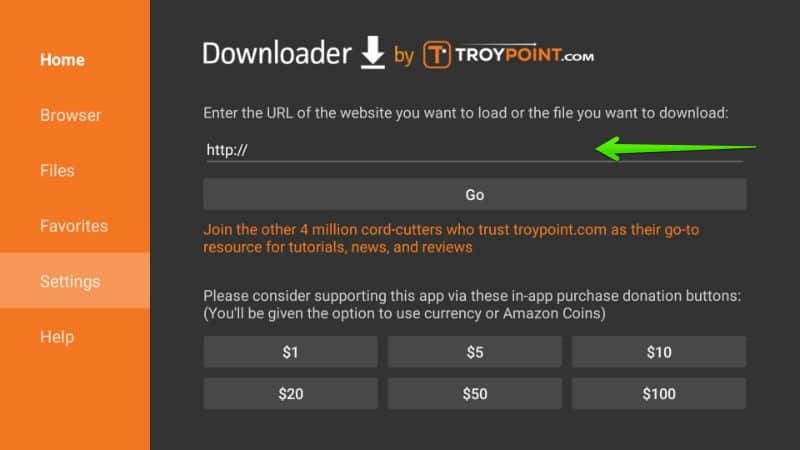
A Quick Start Guide is showing on your TV screen. Just select OK to start using Downloader on Firestick.14- Select the URL Box
Here you can enter the download link of any application package.